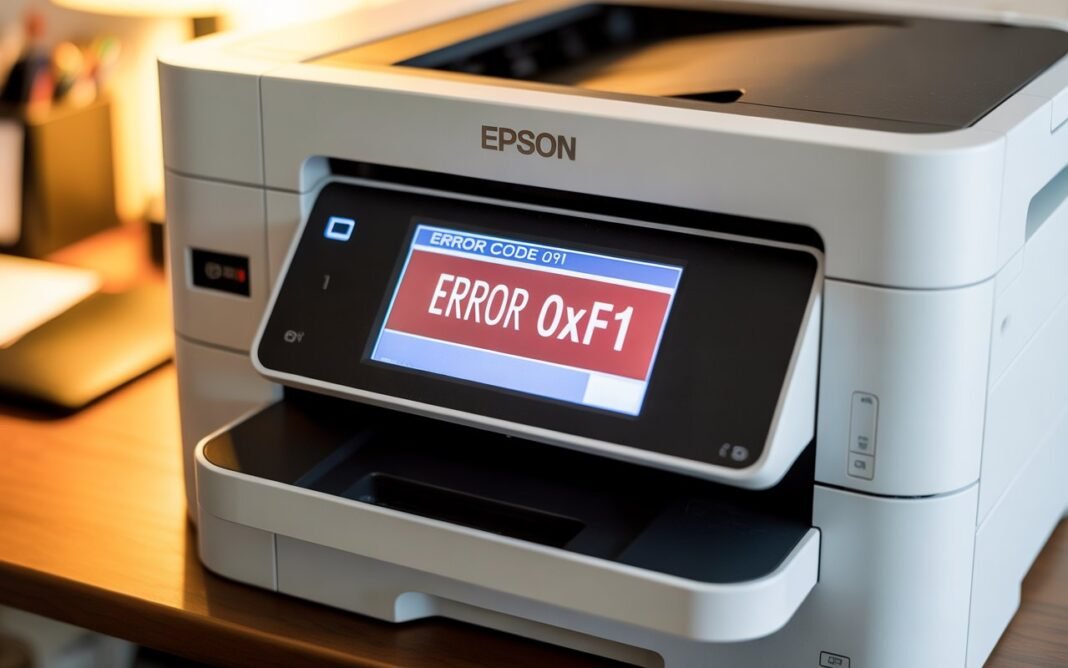

So your Epson printer just stopped working and flashed a cryptic error that reads 0xf1 — and now you’re staring at your screen wondering what went wrong.
Trust me, you’re not alone. This is one of the most common Epson printer errors people search for in 2026, and the good news is — it’s almost always fixable at home without calling a technician or spending money on repairs.
In this guide, I’ll walk you through exactly what causes the Epson error code 0xf1, how to diagnose it quickly, and the step-by-step fixes that actually work. Whether you’re using Windows 11, Windows 10, or a Mac, I’ve got you covered.
Let’s get that printer back to life.
Read: Epson Printer Error Code 0x97 Fix | Causes, Solutions & Guide
What Is Epson Printer Error Code 0xf1?
The Epson error code 0xf1 is a hardware-level error that usually means your printer’s internal components — most often the print head carriage — have encountered a mechanical problem. The printer essentially gets stuck and can’t complete its startup or printing cycle.
When this happens, you’ll typically see:
- A red or orange blinking light on your printer
- An error message on your screen saying “Error Code 0xf1”
- The printer refusing to print anything
- Sometimes, an unusual sound like grinding or clicking before it stops
This error is most commonly reported on Epson EcoTank models (ET-2720, ET-2803, ET-4850), Epson WorkForce printers, and Epson Expression series printers — but it can show up on almost any Epson model.
What Causes the Epson 0xf1 Error?
Before jumping into fixes, it helps to know why this error happens. Here are the most common culprits:
1. Paper Jam or Stuck Debris
A small piece of torn paper, a staple, or even a dust buildup can physically block the print head carriage from moving freely, triggering this error.
2. Carriage Motor Failure
Over time, the carriage motor that moves the print head can wear out or get overloaded, especially on printers that see heavy daily use.
3. Corrupted or Outdated Printer Driver
This is surprisingly common. A Windows update or macOS upgrade can corrupt your existing printer driver, causing communication issues that show up as hardware errors.
4. Ink Pad Saturation
If your printer’s waste ink pads are full, Epson’s internal software will sometimes throw a 0xf1 error as part of a broader shutdown to protect the machine.
5. Loose or Damaged Internal Parts
In some cases, a cable connecting the print head carriage to the main board becomes loose — usually after moving the printer or after a bump.
How to Fix Epson Printer Error Code 0xf1 — Step-by-Step
Work through these fixes in order. Most people find a solution within the first two or three methods.
Fix 1: Turn the Printer Off Completely and Restart
This sounds too simple to work, but it actually resolves the 0xf1 error more often than you’d think — especially if it was a one-time software glitch.
Steps:
- Press the power button to turn the printer off.
- Unplug the power cable from the back of the printer — don’t just use the power button.
- Wait a full 60 seconds (not 10, not 30 — a full minute).
- Plug the power cable back in and turn the printer on.
- Try printing a test page.
If the error is gone, great! If it comes back, move to the next fix.
Fix 2: Check for a Paper Jam or Stuck Object
A small scrap of paper hidden inside the printer is one of the most sneaky causes of the 0xf1 error.
Steps:
- Open all access panels — the front, rear, and any side doors your model has.
- Use a flashlight to look deep inside. Look for torn paper scraps, small bits of cardboard, or any foreign objects.
- Gently remove anything you find using your fingers or a pair of tweezers. Never use metal tools directly on the print head area.
- Once clear, manually push the print head carriage gently from one side to the other. It should move smoothly without resistance.
- Close all panels and restart the printer.
Pro Tip: If you hear a clicking or grinding sound when you move the carriage by hand, there’s still something blocking it. Look more carefully.
Fix 3: Manually Free the Print Head Carriage
Sometimes the carriage gets mechanically “stuck” and just needs a gentle nudge to reset its position.
Steps:
- Turn off the printer and unplug it from power.
- Open the printer cover to access the print head carriage.
- Wait about 2–3 minutes to allow any internal parts to cool down.
- Gently slide the print head carriage to the far left side, then to the far right side.
- Check that it moves freely across the full range without catching or grinding.
- If it moves smoothly, close the cover, plug in the printer, and power it on.
- Run a self-test print to confirm the error is cleared.
⚠️ Important: Never force the carriage if it’s hard to move. If it feels very stiff, there may be a mechanical damage that needs professional attention.
Fix 4: Update or Reinstall the Printer Driver
If the hardware checks out fine, the error is likely software-related. This fix works especially well after a Windows 11 or macOS update.
Steps for Windows 10/11:
- Press Windows + R, type devmgmt.msc, and hit Enter.
- Find your Epson printer under Printers or Other Devices.
- Right-click it and select Uninstall device.
- Go to Epson’s official website → Support → find your specific printer model → download the latest driver for your OS version.
- Install the new driver and restart your PC.
- Add the printer back and run a test print.
Steps for Mac:
- Go to System Settings → Printers & Scanners.
- Select your Epson printer and click the minus (–) button to remove it.
- Visit Epson’s website and download the latest driver for your macOS version.
- Install and re-add the printer.
Fix 5: Use the Epson Printer Reset Utility
Epson provides a free official tool called Epson Adjustment Program (Resetter) that can clear hardware error states including the 0xf1 error. It’s especially helpful if the error is tied to ink pad saturation.
Steps:
- Go to the Epson official support page for your region (US: epson.com/support | UK: epson.co.uk/support | Australia: epson.com.au/support).
- Search for your printer model and download the Epson Reset Utility or Service Adjustment Program.
- Run the utility and follow the on-screen instructions to reset the printer’s internal counter and error flags.
- Restart the printer.
Fix 6: Check and Reseat Internal Cable Connections
This is a slightly more advanced fix, but it’s worth trying if everything else has failed.
Steps:
- Power off the printer and unplug it completely.
- Open the printer’s back panel (usually held by 2–4 screws).
- Look for the flat ribbon cable that runs from the print head carriage to the main circuit board.
- Gently press the connectors on both ends to make sure they’re fully seated.
- Reassemble and test.
If any cables appear damaged or frayed, this is when you’d want to contact an Epson service center.
Fix 7: Factory Reset the Printer
If nothing else works, a factory reset wipes the printer’s internal memory and clears any persistent error states.
Steps:
- With the printer powered on, press and hold the Home button for 3 seconds.
- Navigate to Setup → Restore Default Settings → All Settings.
- Confirm the reset.
- Allow the printer to restart and go through its initialization process.
Note: Steps may vary slightly depending on your Epson model. Check your user manual for the exact navigation path.
Still Seeing the 0xf1 Error? Here’s What to Do Next
If you’ve tried all the above fixes and the error persists, there are a few more options:
Contact Epson Support Directly
Epson’s customer support can run remote diagnostics in many cases. You can reach them at:
- US: 1-800-463-7766 | epson.com/support
- UK: 0871 423 7766 | epson.co.uk/support
- Australia: 1300 361 054 | epson.com.au/support
Visit an Authorized Epson Service Center
If your printer is still under warranty, repair or replacement may be free. Check Epson’s website to find the nearest authorized service center in your area.
Consider Replacing the Printer
If your printer is more than 5 years old and out of warranty, the repair cost might exceed the value of the machine. In that case, looking at a new Epson EcoTank or WorkForce model might be the more cost-effective choice.
How to Prevent the 0xf1 Error From Coming Back
Once you’ve fixed the issue, here’s how to keep it from happening again:
- Keep the printer clean: Use a soft, dry cloth to wipe down the exterior once a month. Use the built-in cleaning utility every few weeks to keep the print head clear.
- Don’t leave the printer idle for too long: Long periods of inactivity can cause ink to dry and mechanical parts to stiffen. Run a short print job at least once a week.
- Keep drivers updated: Whenever Epson releases a firmware or driver update, install it. These often contain bug fixes for error codes like 0xf1.
- Use quality paper: Low-quality or damp paper is much more likely to tear inside the printer and cause jams.
- Handle the printer gently: Avoid moving it abruptly or placing it in areas where it might get knocked around.
Frequently Asked Questions (FAQs)
Q: Is Epson error code 0xf1 serious?
A: Not always. In most cases, it’s caused by a simple paper jam, stuck carriage, or outdated driver — all of which you can fix at home. It only becomes serious if there’s physical damage to internal components.
Q: Does the 0xf1 error mean my printer is broken forever?
A: No. The vast majority of users who see this error fix it successfully using the steps above. It’s rare for this to indicate permanent hardware failure.
Q: Can the 0xf1 error appear after a Windows 11 update?
A: Yes, this is actually very common. Windows updates can disrupt printer driver compatibility. Reinstalling the latest Epson driver usually fixes it.
Q: How long does it take to fix the 0xf1 error?
A: Most fixes take between 5 and 20 minutes. The driver reinstall takes the longest, but even that is usually done within 15–20 minutes.
Q: My Epson EcoTank is showing 0xf1. Is this model-specific?
A: While EcoTank printers do report this error frequently, the causes and fixes are the same across all Epson models. Work through the fixes above in order.
Final Thoughts
The Epson printer error code 0xf1 is frustrating — especially when you’re in the middle of something important. But as you’ve seen, it’s rarely the end of the road for your printer.
Start with the simple stuff: a full power cycle, checking for paper jams, and freeing the print head carriage. If that doesn’t work, a driver reinstall or using Epson’s reset utility will usually do the trick.
Got your printer working again? Drop a comment below and let others know which fix worked for you — it might help someone else in the same boat.
And if you’re still stuck, don’t hesitate to reach out to Epson support. That’s exactly what they’re there for.