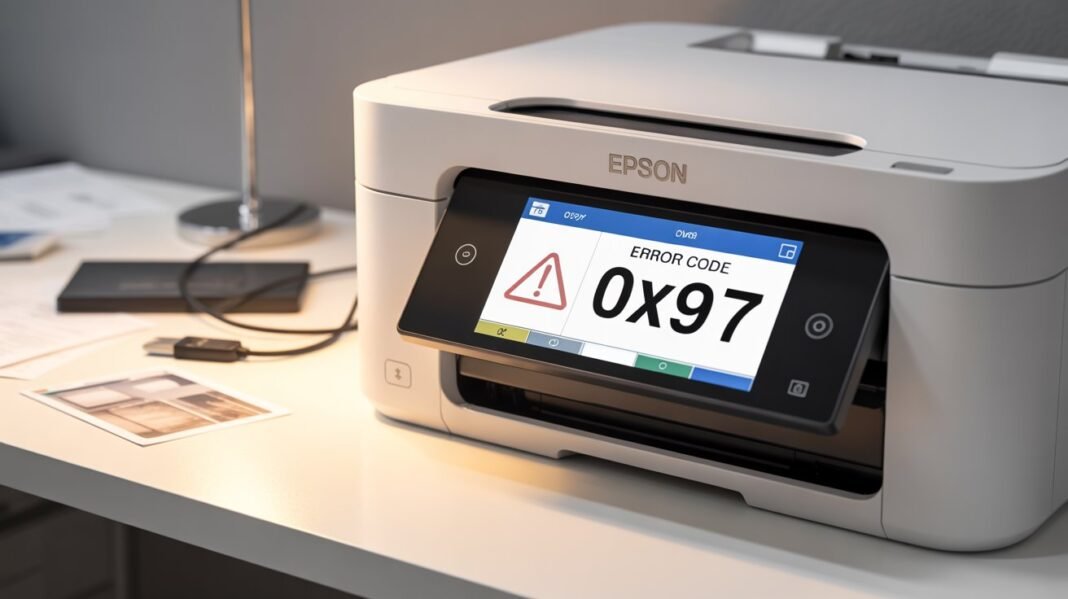

Epson printers are famous for their reliability and print quality, but sometimes problems can arise with any electronic device. One of the most common but at the same time one of the most annoying problems that Epson users encounter is error code 0x97. If your printer suddenly shows this code on the screen and your printing process stops midway, there’s no reason to panic. I will tell you what it means, why this occurs and how to fix it at home.
Read: How to Fix HP Printer Error Code 49?
What Does Epson Error Code 0x97 Mean?
Error code 0x97 is a common indication of a hardware fault that occurs inside your printer. The most typical source of a 0x97 error is an internal failure caused by either the printer’s motherboard or the printhead. It may manifest on models such as Epson WorkForce WF-3620, WF-3640, WF-7610, WF-7620, and other similar models. This error code infests your printer, and the severe consequences will follow immediately. The printer will suddenly end printing and will light flashing. Additionally, the 0x97 numeric will display on your screen. At last, several unusual appears can be heard inside the printer prior to it shuts down automatically.
Common Causes of Epson Error 0x97
- Printhead Failure – The printhead can clog, overheat, or short-circuit due to ink residue.
- Internal Hardware Glitch – The printer’s motherboard or internal circuit can malfunction.
- Ink Spillage or Paper Debris – Sometimes, dried ink or bits of paper stuck inside the printer trigger the error.
- Firmware Issues – Outdated firmware can cause the printer to misread sensor data and stop working.
- Prolonged Inactivity – Long gaps between prints can lead to dried ink clogging the printhead.
Step-by-Step Fixes for Epson error code 0x97
Here are some tried and tested solutions you can follow at home before contacting support.
1. Unplug and Reset the Printer
- Turn off your Epson printer completely.
- Unplug all cables, including power and USB.
- Wait 5 minutes to let the internal capacitors discharge.
- Press and hold the Power button for 1 minute while the printer is unplugged.
- Reconnect all cables and turn the printer on.
This simple reset can clear temporary glitches and may resolve the error.
2. Clean the Printhead Manually
If the error persists, the printhead might be clogged or dirty.
- Open the printer’s top cover and gently move the carriage to the center (if possible).
- Take a soft, lint-free cloth slightly dampened with warm water.
- Wipe away any ink residue around the printhead area.
- Let it dry completely before closing the printer and powering it on again.
Note: Avoid using alcohol or cleaning sprays unless recommended by Epson.
3. Try a Power Cycle With Ink Cartridges Removed
- Turn off the printer and unplug it.
- Remove all ink cartridges carefully.
- Hold the Power button for 60 seconds.
- Reinstall the cartridges and reconnect the power cord.
- Turn on the printer to see if the error disappears.
This process helps reset the printer’s sensor readings.
4. Update Printer Firmware
Epson frequently releases firmware updates that fix system bugs and improve performance.
- Visit Epson’s official support site
- Search for your printer model and download the latest firmware.
- Install it following the on-screen instructions.
- Updating the firmware can often remove the 0x97 error if it’s software-related.
Contact Epson Support or Visit a Service Center
If none of the above solutions work, the issue may be hardware-related — possibly a damaged motherboard or internal circuit.
In that case, it’s best to contact Epson customer support or visit an authorized service center. They can inspect and repair or replace the defective parts safely.
Tips to Prevent Epson Error Code 0x97 in the Future
- Print at least once a week to prevent ink from drying inside the printhead.
- Always use genuine Epson ink cartridges.
- Keep your printer firmware up-to-date.
- Avoid overfilling ink tanks or refilling cartridges beyond their capacity.
- Clean the printer periodically and keep it covered when not in use.
Conclusion
Epson error code 0x97 can seem serious, but in many cases, it’s caused by minor issues like a printhead jam or temporary glitch. By following the above troubleshooting steps — from resetting to cleaning and updating — you can often fix the problem at home.
However, if the error persists, it’s best to get professional help to avoid damaging internal components. Regular maintenance and genuine ink usage go a long way in keeping your Epson printer running smoothly.