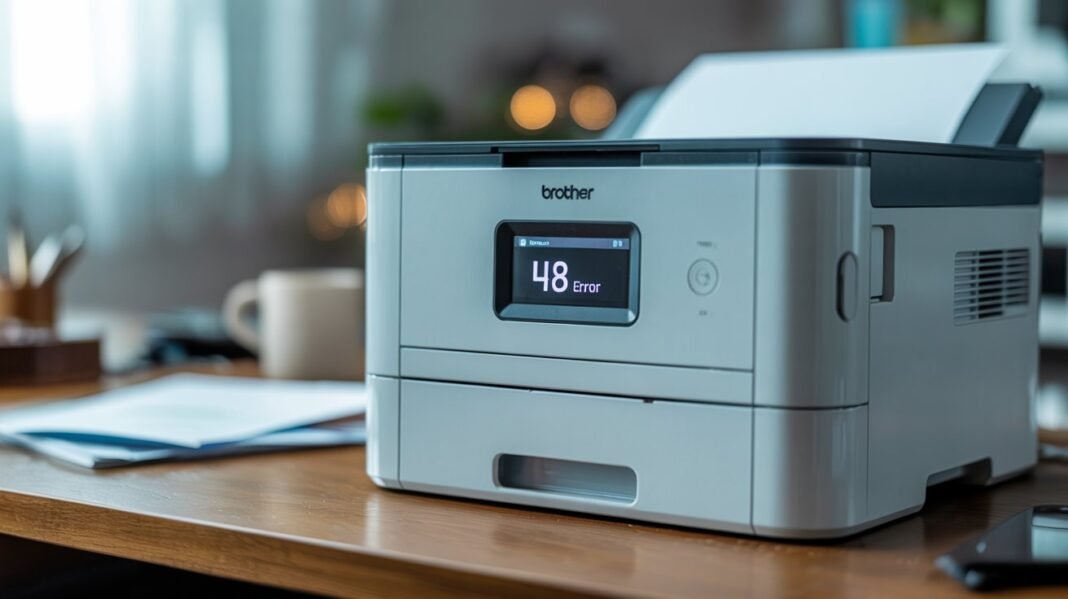

Last week, my Brother printer suddenly showed an Unable to Print 48 message while I was printing an urgent document. If you’ve faced the same, I know how frustrating it feels…”
If your Brother printer suddenly stops working and displays “Unable to Print 48”, don’t worry — you’re not alone. This is one of the most common and highly searched Brother printer errors. It typically indicates a mechanical issue with the print head or carriage assembly, and while it sounds serious, there are several easy fixes you can try before heading to a service center.
Read: How to Fix HP Printer Error Code 49?
What Causes the “Unable to Print 48” Error?
The “Unable to Print 48” message usually appears when the printer detects a mechanical malfunction in the print head or surrounding mechanism. Some of the most common reasons include:
- Print head jammed or stuck
- Ink absorber pad overflow
- Dried ink blocking print head movement
- Disconnected or damaged print head cables
- Internal mechanical failure
These issues prevent the print head from moving freely, triggering the error code on the display.
Basic Fixes for Brother Printer Unable to Print 48
Before you rush to a repair shop, try these simple troubleshooting steps. Many users fix the problem right at home.
Step 1: Power Reset Your Printer
- Turn off your Brother printer.
- Unplug it from the power outlet.
- Wait for 60 seconds.
- Plug it back in and power it on.
A simple reset can sometimes clear minor sensor or software errors.
Step 2: Check for Paper or Foreign Objects
Open the printer’s top cover and carefully inspect inside:
- Remove any paper jam, torn paper pieces, or foreign objects like clips or dust.
- Gently move the print head to the center manually (only if it moves freely).
Be gentle — forcing the print head can cause more damage.
Step 3: Clean the Print Head and Encoder Strip
- Using a soft lint-free cloth, wipe the encoder strip (the transparent plastic strip behind the print head).
- Avoid touching the metal rails or circuit parts.
- Clean any visible ink build-up with a slightly damp cloth and let it dry.
This helps when ink buildup is preventing smooth movement.
Step 4: Check Ink Cartridges
- Open the ink cartridge cover.
- Remove and reinsert each cartridge one by one.
- Ensure they are correctly seated and the color tabs click into place.
- Use genuine Brother ink cartridges for best performance.
Step 5: Update Firmware or Reset Printer Settings
Sometimes, outdated firmware can misread mechanical errors.
- Visit the official Brother Support Page
- Search your model number and download the latest firmware update.
- You can also perform a factory reset via the Settings > Machine Info > Reset option.
If the Error Persists
If none of the above fixes work, the print head may need replacement or professional cleaning. Contact Brother Customer Support or visit an authorized service center. For DIY enthusiasts, replacing the print head is possible — but only if you have experience handling printer parts.
Prevention Tips
- Regularly clean your printer and run printhead cleaning cycles.
- Print at least once a week to prevent ink drying.
- Use genuine ink cartridges to avoid clogging or leakage.
- Keep your printer in a dust-free, cool place.
Conclusion
The Brother Printer “Unable to Print 48” error may seem intimidating, but in most cases, it’s caused by a jammed print head or dirt buildup. By following the troubleshooting steps above, you can fix the problem at home without spending on costly repairs. If the issue continues, it’s best to get your printer serviced to prevent further damage.
Keeping your Brother printer maintained regularly will ensure smooth, error-free printing for years to come.