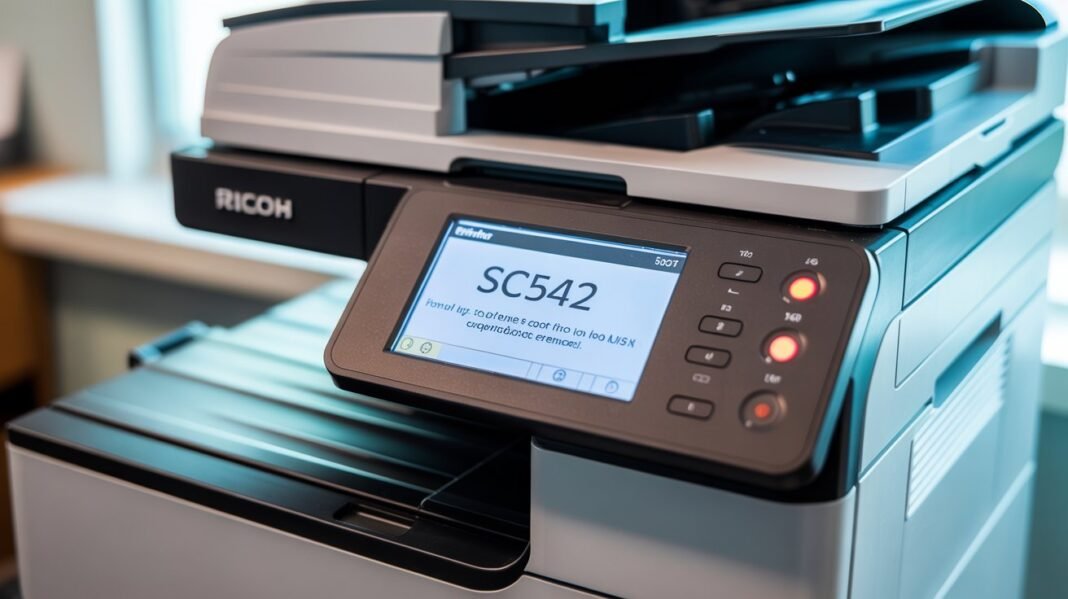

If your Ricoh printer is showing Error SC542, it means the printer has detected a fusing temperature error. This issue usually appears when the fuser unit fails to reach or maintain the required heat level. The good news? You can fix this problem yourself in most cases without expensive repair work. In this guide, we’ll explain what causes Ricoh SC542, how to fix it step by step, and when to call a technician.
Read: Epson Printer Error Code 0x97 Fix | Causes, Solutions & Guide
What Is Ricoh Printer Error SC542?
Ricoh Error SC542 is a fusing temperature error, meaning:
- The fuser did not warm up properly
- The temperature dropped suddenly
- The thermistor failed to read correct heat
- The thermostat or heater lamp malfunctioned
The fuser is responsible for heating toner and bonding it to paper. When it fails, the printer automatically stops printing to prevent damage.
Common Causes of Ricoh SC542 Error
The SC542 error can occur due to several reasons:
1. Power fluctuation or sudden shutdown: A drop in electricity can interrupt fuser heating.
2. Dirty or faulty thermistor: If the thermistor is covered with toner dust, it reads incorrect temperature values.
3. Defective heater lamp or fusing lamp:If the lamp is damaged, the fuser cannot heat up.
4. Damaged thermal fuse or thermostat:A blown safety fuse prevents overheating but also stops heating completely.
5. Loose fuser connection:Connector issues can interrupt electrical supply to the fuser.
How to Fix Ricoh Printer Error SC542 (Step-by-Step)
Below are safe steps you can try before calling a technician. These work for most Ricoh models, including:
- Ricoh MP Series
- Ricoh Aficio Series
- Ricoh IM Series
- Ricoh MPC 2003 / 2503 / 3003 / 3503
- Ricoh MP 301 / 4002 / 5002
Step 1: Turn Off the Printer and Restart
This clears temporary hardware glitches.
- Turn off the printer
- Remove the power cable
- Wait 10–15 seconds
- Plug the cable back in
- Turn on the printer
If the error returns, move to the next step.
Step 2: Reset the Fuser Error from Service Mode
Ricoh printers allow you to reset SC542 manually.
Follow these steps carefully:
- Press Clear/Stop (Yellow Button)
- Press 1, 0, 7 on keypad
- Hold the Stop button for 5 seconds
- The Service Mode menu opens
- Go to SP5-810 (SC Reset)
- Select “Execute”
- Turn the printer OFF
- Turn it ON again after 10 seconds
If the SC542 error disappears → You’re done.
If not → The fuser has an actual hardware issue.
Step 3: Check the Fuser Unit (If You Have Basic Tech Knowledge)
If you’re comfortable handling printer hardware:
1. Remove the fuser unit: Open the rear side of printer, unscrew the fuser module.
2. Check for toner buildup: Clean the thermistor area with a dry lint-free cloth.
3. Inspect the heater lamp: Broken or burned-out lamp must be replaced.
4. Check cables & connectors: Make sure the fuser cable sits firmly in the connector.
If anything looks burned, melted, or broken → You’ll need a replacement part.
Step 4: Replace the Fuser Assembly (If Necessary)
A damaged fuser cannot be repaired easily and must be replaced.
Typical symptoms of a faulty fuser:
- Constant SC542 even after reset
- Smell of burnt plastic
- Wrinkled or unfused pages
- Printer heats too slowly
When Should You Call a Professional?
You should contact a Ricoh technician or a trusted printer support provider if:
- SC542 appears repeatedly
- Reset does not clear the error
- You notice burning smell or smoke
- Printer overheats
- Heater lamp or thermistor is broken
- You are not comfortable opening the printer
Professional support ensures safe diagnosis and prevents further damage.
Frequently Asked Questions (FAQ)
Q1. Is Ricoh SC542 dangerous?
Not dangerous for the user, but it indicates a major heating system failure. Avoid using the printer until you fix it.
Q2. Can I clear SC542 by just resetting?
Yes, if the cause was temporary (dust, glitch, power fluctuation).
No, if hardware components are damaged.
Q3. Does SC542 mean the fuser is dead?
Not always. Sometimes it’s just dirty thermistors or low temperature issues.
Conclusion
Ricoh Printer Error SC542 is a common issue caused by temperature problems in the fuser unit. While it looks serious, you can often fix it by simply resetting the fuser error, cleaning the fuser parts, or checking for loose cables. If the issue repeats, the fuser assembly might need replacement.
For users who aren’t confident handling internal components, contacting a certified technician or a trusted third-party printer support provider is the safest approach.