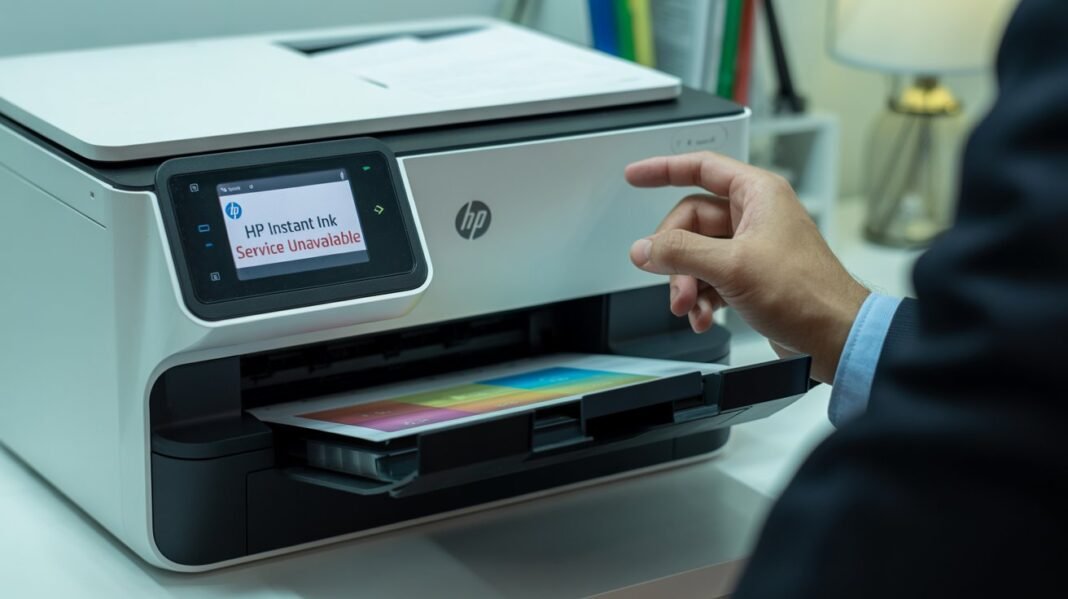

HP Instant Ink is a convenient subscription service that automatically sends ink or toner to your doorstep before you run out. But at times, you may find that HP Instant Ink not working, your printer refuses to print, or you see messages like “HP Instant Ink cartridge cannot be used”, “Cartridge problem”, or “Subscription required.”
Don’t worry—this is one of the most common HP errors and can be fixed easily. In this guide, we’ll explain why your HP Instant Ink stops working and how you can fix it step by step.
Read: How to Fix HP Printer Error Code 49?
What Is HP Instant Ink? (Quick Overview)
HP Instant Ink is a subscription-based ink or toner delivery service that tracks your printer usage through the internet.
Your HP printer must be:
- Connected to Wi-Fi
- Connected to your HP account
- Using HP Instant Ink subscription cartridges
If any of these fail, HP Instant Ink may stop working.
Common Reasons Why HP Instant Ink Not Working
Here are the most frequent causes behind the problem:
1. Your Printer Is Not Connected to the Internet
HP Instant Ink requires an active internet connection to verify your subscription.
If your printer disconnects from Wi-Fi, your Instant Ink cartridges will stop working.
2. Your HP Instant Ink Subscription Is Inactive or Expired
If your payment failed or you canceled the plan, Instant Ink cartridges will show an error.
3. Using Non-Instant Ink Cartridges
Instant Ink printers often reject standard HP cartridges if the subscription is active.
4. Printer Unable to Sync With HP Smart App
The HP Smart app tracks your subscription.
If it cannot sync, your printer may display cartridge errors.
5. Your HP Account Email Changed
If you switched email IDs, your printer may not recognize the new HP account.
6. Cartridges Are Not Installed Properly
Dust, loose installation, or damaged chips cause Instant Ink failure.
7. HP Disabled Your Cartridges
If your printer has been offline for several weeks, HP may disable Instant Ink cartridges until you reconnect.
How to Fix HP Instant Ink Not Working (Step-by-Step Guide)
Follow these solutions in order:
1. Check Your Printer’s Wi-Fi Connection
Instant Ink won’t work without Wi-Fi.
- Go to your printer Control Panel / Settings
- Open Network / Wireless Settings
- Ensure Wi-Fi shows Connected
- If not, reconnect your printer to Wi-Fi
- Restart your printer once
Tip: Make sure your printer and phone/laptop are on the same Wi-Fi network while using HP Smart.
2. Reconnect the Printer to the HP Smart App
HP Smart often fixes subscription sync issues.
- Open HP Smart
- Select your printer
- Go to Printer Settings → HP Account
- Log out and log in again
- Restart HP Smart and your printer
This forces your printer to refresh your Instant Ink status.
3. Check Your HP Instant Ink Subscription Status
Sometimes your payment fails silently.
- Visit: instanthpink.com or instantink.hpconnected.com
- Log in with your HP account
- Check:
- Subscription active or paused
- Payment method valid
- Cartridge status
- Update payment if needed
4. Remove and Reinstall the Instant Ink Cartridges
Loose or dusty cartridges can be the cause.
- Turn OFF your printer
- Open the cartridge access door
- Remove both ink cartridges
- Wipe the copper contacts gently with a clean dry cloth
- Reinsert them firmly
- Close the door and restart the printer
5. Update Printer Firmware
Outdated firmware often rejects Instant Ink cartridges.
- Open HP Smart
- Go to Printer Settings → Advanced Settings
- Open the built-in EWS (Embedded Web Server)
- Go to Tools → Firmware Update
- Install all updates
6. Factory Reset the Printer (Last Option)
If nothing else works, resetting solves deep connection errors.
- Go to Setup / Settings
- Select Printer Maintenance
- Choose Restore Factory Defaults
- Reconnect your printer to Wi-Fi
- Log into HP Smart again and sync your Instant Ink account
When to Contact HP Support
If your subscription is active and cartridges are still not recognized, contact HP Support – Instant Ink (They can reactivate your cartridge remotely.)
Conclusion
HP Instant Ink usually stops working due to Wi-Fi issues, subscription problems, outdated firmware, or cartridge connection errors. By reconnecting your printer to Wi-Fi, syncing the HP Smart app, checking your subscription, and reinstalling the cartridges, you can fix most problems in minutes. If everything fails, restoring factory settings or contacting HP Instant Ink support will resolve it.