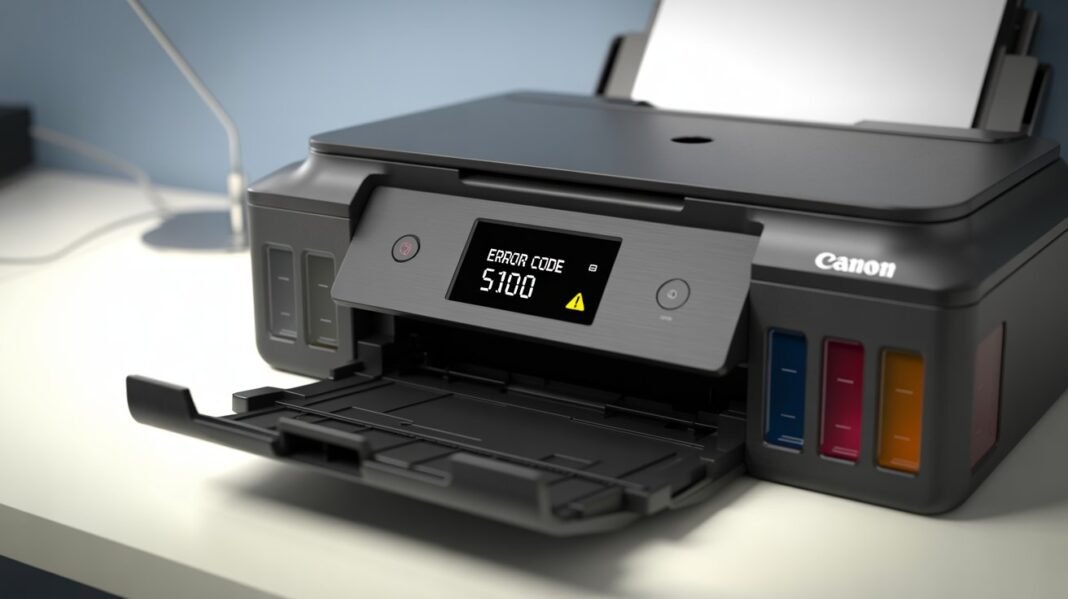

If your Canon printer suddenly stops working and shows Error Code 5100, don’t panic — this is a common issue faced by many Canon users. The good news is that you can fix it yourself at home without professional help. In this guide, we’ll explain what Error Code 5100 means, why it happens, and how you can fix it in just a few steps.
Read: Epson Printer Error Code 0x97 Fix | Causes, Solutions & Guide
What Does Canon Printer Error Code 5100 Mean?
Error Code 5100 in Canon printers usually indicates a carriage problem — meaning the print head or the carriage (that holds the ink cartridges) cannot move properly. It may also be caused by obstructions inside the printer, ink cartridge misalignment, or paper feed issues.
Common Canon printer models that may show this error include:
- Canon PIXMA MG, MX, TS, TR, and iP series
- Canon G-series (G1010, G3010, G4010, etc.)
Common Causes of Canon Error Code 5100
Before jumping into the solutions, it’s helpful to know what might be causing the issue:
- Paper jam or foreign object blocking the carriage.
- Dirty or misaligned print head.
- Improperly seated ink cartridges.
- Obstruction in the encoder strip.
- Faulty ink absorber pad.
- Improper reset after maintenance.
Step-by-Step Solutions to Fix Canon Error 5100
Step 1: Turn Off and Restart the Printer
- Turn off your Canon printer.
- Unplug it from the power source for 2–3 minutes.
- Plug it back in and turn it on again.
- Sometimes, a simple restart resets the system and clears temporary glitches.
Step 2: Check for Paper Jams or Debris
- Open the printer’s top cover carefully.
- Remove any stuck paper, clips, or dust inside.
- Make sure the carriage moves freely from side to side when you push it gently.
Tip: Use a flashlight to check for tiny scraps of paper that may be blocking the carriage rail.
Step 3: Reinstall or Clean the Ink Cartridges
- Open the cartridge access door.
- Gently remove the ink cartridges.
- Check for dried ink, dust, or loose connections.
- Wipe the cartridge contacts using a soft lint-free cloth.
- Reinsert the cartridges properly until they click into place.
Step 4: Clean the Encoder Strip
The encoder strip is a thin transparent plastic strip located behind the carriage.
- Power off the printer.
- Use a soft, lint-free cloth slightly dampened with distilled water.
- Gently wipe the strip to remove ink or dust.
- Let it dry for a few minutes before restarting the printer.
Step 5: Reset the Printer
If the error persists:
- Turn off your printer.
- Hold the Stop/Reset button.
- Press and hold the Power button while still holding Stop/Reset.
- Release the Stop/Reset button, then press it twice.
- Release all buttons and wait until the printer restarts.
This performs a soft reset and clears stored error codes.
Step 6: Perform a Test Print
Once your printer is on:
- Load a few sheets of plain paper.
- Print a test page to verify if the error has been resolved.
If the Error Code 5100 no longer appears, your Canon printer is back to normal!
If the Error Persists
If you’ve tried all the above methods and the error still shows up:
- The carriage motor or sensor may be faulty.
- Contact Canon customer support or a certified service technician for further assistance.
Final Thoughts
Canon printer Error Code 5100 is one of the most common yet easy-to-fix problems. In most cases, it’s caused by paper jams or carriage movement issues, which can be resolved with simple cleaning and resetting steps. By following the guide above, you can save time and money on service calls and get your printer working again in minutes.